
Disk health · HDD
How to check hard drive health (without chasing ghosts)
Hard Disk Sentinel shines when you treat health as velocity: how fast counters move — not a single green badge.
May 2026 · ~8 min read · Independent educational content
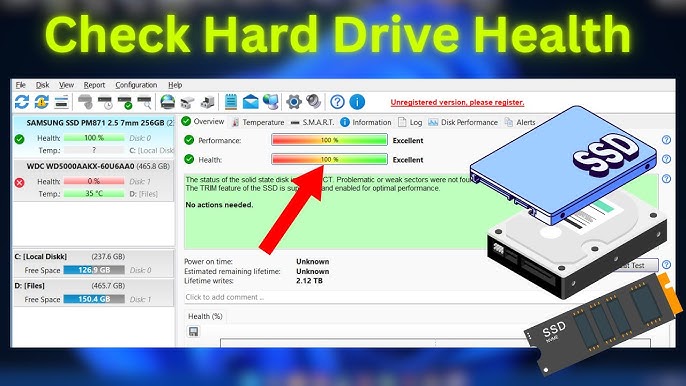
1. Capture a baseline when the disk is boring
The worst time to discover “what normal looks like” is during an incident. After a clean boot with minimal background IO, record SMART snapshots and export if you maintain fleets. That baseline becomes your story arc — sudden deviations matter more than absolute labels.
2. Temperature is part of health — especially for HDDs
Mechanical drives tolerate heat poorly compared with SSDs in short bursts. Track peaks during sustained transfers — encodes, backups, game patches — not just idle temps. Rising peaks often precede realloc activity when cooling degrades.
3. SMART attributes worth trending
Vendors rename attributes, but patterns recur: realloc/pending sectors, uncorrectable errors, interface CRC errors (often cable/port issues), and seek error rates on mechanical disks. If only one attribute moves while others stay flat, suspect environmental causes before declaring death spirals.
4. Self-tests that complement idle monitoring
Short tests catch obvious defects; extended tests stress platters longer — schedule them when ambient temps are reasonable and the machine is idle. Compare outcomes against previous runs rather than chasing manufacturer marketing thresholds.
5. When to migrate data
If realloc counts accelerate, audible bearing noise appears, or filesystem journals throw recurring errors during light workloads, clone to replacement media before surface degradation spreads. Monitoring buys runway — backups deliver certainty.